Agent Management Guide
This guide covers the comprehensive management of KrakenHashes agents, including registration, monitoring, scheduling, and troubleshooting.
Table of Contents
- Understanding Agents
- Agent Registration Process
- Managing Agent Connections
- Monitoring Agent Health and Performance
- Agent Scheduling and Availability
- Hardware Capabilities and Benchmarks
- Troubleshooting Agent Issues
Understanding Agents
What are Agents?
Agents are distributed compute nodes that execute password cracking tasks using hashcat. They connect to the KrakenHashes backend server via WebSocket and receive job assignments based on their availability and capabilities.
Agents and teams
When Multi-Team Mode is enabled, an agent's owner determines which teams may run jobs on it. Agents owned by a team's members are direct agents for that team; system-owned agents belong to the Default Team; and teams can borrow each other's agents through one-way trust relationships. Changing an agent's owner is restricted to administrators while teams are on. See Team Management — Agent visibility and ownership.
Agent auto-update
Agents installed via the launcher keep themselves up to date automatically — updating only while idle, with checksum verification and automatic rollback. Administrators control the fleet-wide rollout (enable/disable, max agents updating at once, health-check timeout, retry count) under Admin Settings, and failed updates surface on this page with a manual retry. See Agent Auto-Update.
Agent Architecture
Each agent consists of: - Hardware Detection: Automatic detection of GPUs (NVIDIA, AMD, Intel) and CPUs - Performance Monitoring: Real-time tracking of resource utilization - File Synchronization: Automatic download of wordlists, rules, and hashlists - Job Execution: Running hashcat with specified attack parameters - Result Reporting: Real-time crack updates back to the server
Agent States
Agents can be in one of the following states:
pending: Initial registration state, awaiting activationactive: Connected and ready to receive jobsinactive: Disconnected but previously activeerror: Experiencing issues preventing normal operationdisabled: Administratively disabled
Agent Registration Process
Overview
Agent registration uses a claim code (voucher) system to ensure only authorized agents can join the system.
Creating Claim Codes
- Navigate to Admin Panel
-
Go to Settings → Agent Management → Claim Codes
-
Generate New Claim Code
-
Claim Code Types
- Single-use: Can only be used once to register one agent
- Continuous: Can be used multiple times (useful for auto-scaling)
Agent Registration Steps
-
Agent Installation
-
Initial Registration
-
Certificate Download
- Agent automatically downloads TLS certificates
-
Stores credentials in
~/.krakenhashes/agent/ -
Connection Establishment
- Agent connects via WebSocket using API key authentication
- Sends hardware information and capabilities
Registration Security
- Claim codes are normalized (uppercase, no hyphens)
- API keys are generated using cryptographically secure random bytes
- TLS certificates ensure encrypted communication
- Agent ID and API key must match for authentication
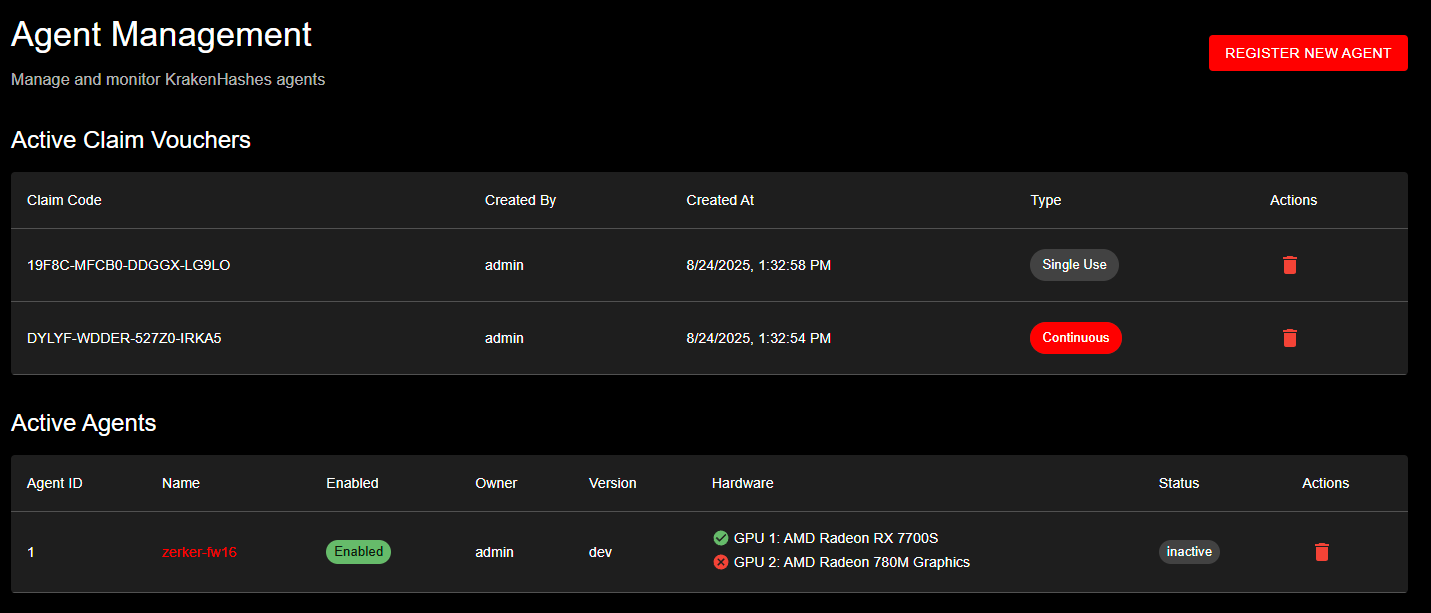 Agent Management interface showing active claim vouchers with different types and currently registered agents with their hardware configurations
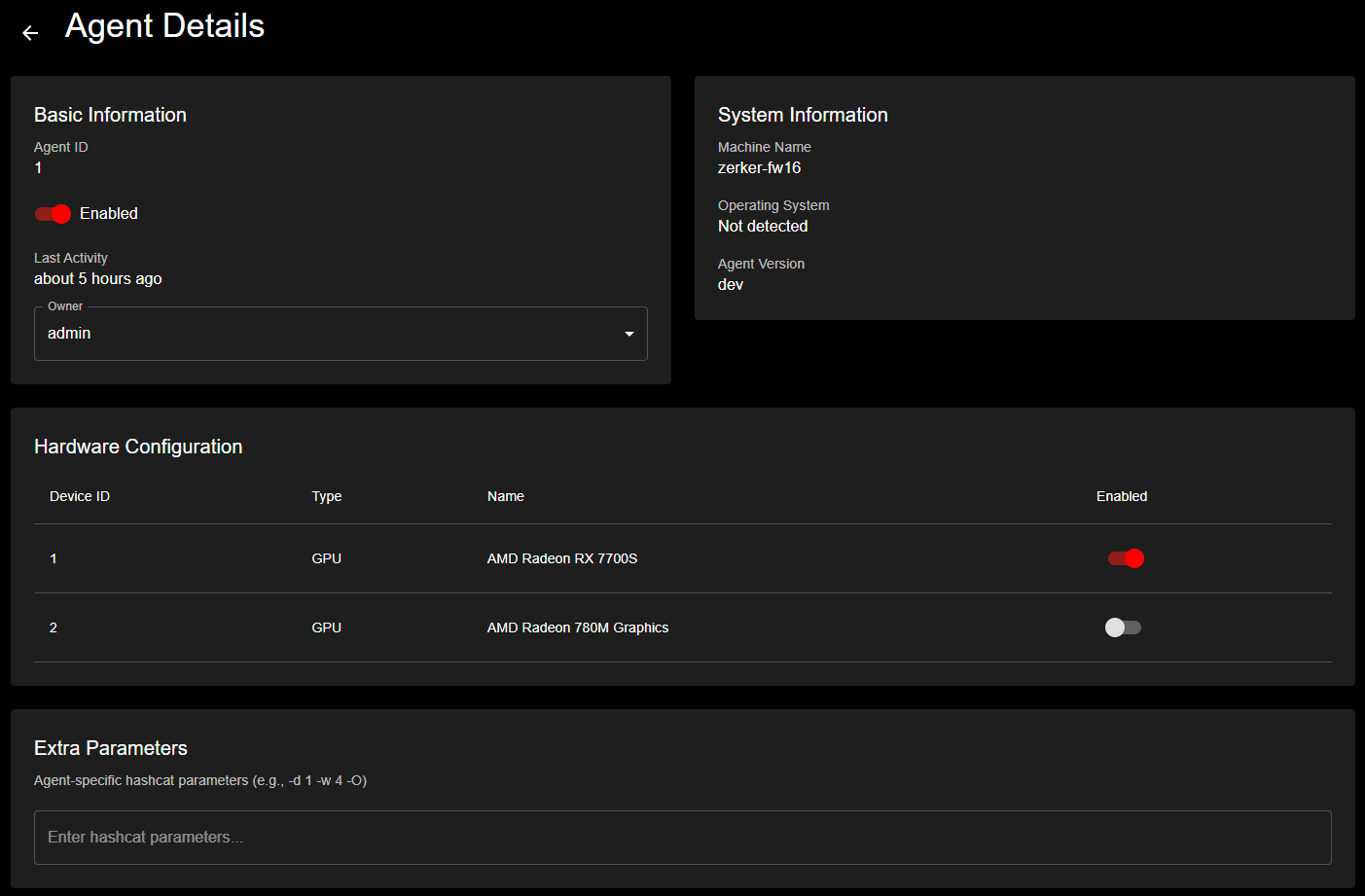 Detailed agent view displaying system information, hardware configuration, and GPU device management with enable/disable controls
Managing Agent Connections
WebSocket Communication
Agents maintain persistent WebSocket connections for: - Real-time job assignments - Status updates - Crack result reporting - Heartbeat monitoring
Connection Parameters
# Environment variables for connection tuning
KH_WRITE_WAIT: "10s"      # Write timeout
KH_PONG_WAIT: "60s"       # Time to wait for pong response
KH_PING_PERIOD: "54s"     # Ping interval (must be < pong wait)
Monitoring Connected Agents
- Dashboard View
- Real-time agent status on main dashboard
- Shows connected/disconnected agents
-
Current task assignments
-
Agent List Page
- Detailed view of all agents
- Filter by status, owner, or team
- Last heartbeat timestamps
Managing Agent Settings
// PUT /api/admin/agents/{id}/settings
{
  "isEnabled": true,
  "ownerId": "user-uuid",
  "extraParameters": "--custom-charset1=?l?u?d",
  "binaryVersion": "7.x",
  "storageTier": "network_direct",
  "networkShareMountPath": "/mnt/kh-agent-share"
}
Storage Tier
Each agent has a storage tier that controls how it obtains wordlists/rules — full_cache (default), on_demand, or network_direct. Set it per agent here or in Admin → System Settings → Storage; network_direct additionally requires networkShareMountPath. The UI sends partial updates, so omitted fields are preserved. Agents may also seed an initial tier at startup via flags/env, but this admin setting is authoritative and is re-asserted on each reconnect. See Storage Architecture → Per-Agent Storage Tiers for what each tier does.
Agent Binary Version Pattern
Agents can be configured with a binary version pattern that determines which jobs they can run and which binary they use. The pattern system uses flexible matching to support mixed-version environments.
Pattern Syntax
| Pattern | Example | Description |
|---|---|---|
default | "default" | Agent can run any job, uses whatever binary is needed |
| Major Wildcard | "7.x" | Agent runs v7 jobs only (7.0.0, 7.1.2, 7.2.0, etc.) |
| Minor Wildcard | "7.1.x" | Agent runs v7.1 jobs only (7.1.0, 7.1.2, 7.1.5, etc.) |
| Exact | "7.1.2" | Agent runs jobs requiring exactly v7.1.2 (any suffix) |
| Exact with Suffix | "7.1.2-NTLMv3" | Agent runs only jobs requiring this specific build |
For detailed compatibility rules, see Binary Version Patterns.
Configuring Agent Binary Version
- Via Agent Details Page
- Navigate to your agent's detail page
- Find the "Binary Version" section
- Select a version pattern from the dropdown
-
Click "Save"
-
Via API
Binary Selection Hierarchy
When an agent needs to execute a job or benchmark, the system uses this priority order:
- Agent Pattern (highest priority) - Binary version pattern specified in agent settings
- Job Pattern - Binary version pattern specified for the specific job execution
- System Default (lowest priority) - Active default binary for the system
The pattern is resolved to an actual binary ID when downloading. For wildcards like "7.x", the system selects the newest matching binary.
Use Cases
- Testing New Versions: Set agent to
"7.x"to test new hashcat releases - Compatibility Issues: Set agent to
"6.x"for older driver compatibility - Performance Optimization: Use specific binary versions that perform better on certain hardware
- Gradual Rollouts: Migrate agents incrementally from
"6.x"to"7.x" - Custom Builds: Use exact patterns like
"7.1.2-NTLMv3"for specialized binaries
Hashcat Version Compatibility Note
⚠️ Important: Hashcat 7.x may detect devices but fail to recognize them as usable compute devices depending on GPU driver versions. If your agent shows devices in the hardware detection but they are not available for job execution, set the agent's binary version to "6.x" to use Hashcat 6.x binaries (such as 6.2.6 or 6.2.5) which have better compatibility with older driver versions.
Important Notes
- Agent binary version pattern affects job compatibility, device detection, benchmarks, and job execution
- The resolved binary is automatically downloaded to the agent if not present
- Jobs with no compatible agents will stay pending until a compatible agent connects
- Use
"default"for maximum flexibility (agent can run any job)
Disabling/Enabling Agents
- Disabled agents remain connected but don't receive jobs
- Useful for maintenance or troubleshooting
- Preserves agent configuration and history
Monitoring Agent Health and Performance
Real-time Metrics
Agents report metrics every 30 seconds:
{
  "cpu_usage": 45.2,
  "memory_usage": 62.8,
  "gpu_utilization": 98.5,
  "gpu_temp": 72.0,
  "gpu_metrics": {
    "device_0": {
      "temperature": 72,
      "utilization": 98.5,
      "memory_used": 8192,
      "fan_speed": 85
    }
  }
}
Performance Monitoring Dashboard
- Agent Detail Page
- Historical performance graphs
- Temperature trends
- Utilization patterns
-
Hash rate performance
-
Metrics Time Ranges
- 1 hour (default)
- 24 hours
- 7 days
- 30 days
Device Management
Each agent can have multiple devices (GPUs):
// GET /api/agents/{id}/devices
[
  {
    "id": 1,
    "device_index": 0,
    "device_type": "GPU",
    "device_name": "NVIDIA GeForce RTX 4090",
    "is_enabled": true,
    "capabilities": {
      "compute_capability": "8.9",
      "memory": 24576
    }
  }
]
Enabling/Disabling Devices
Runtime Selection
Each physical GPU device supports multiple compute backends (runtimes). Administrators can select which runtime to use per device.
Available Runtimes: - CUDA: NVIDIA GPUs (optimal performance) - HIP: AMD GPUs (modern Radeon cards) - OpenCL: Universal (all vendors)
Update Runtime:
Response:
Device Structure with Runtime Options:
{
  "id": 1,
  "device_id": 0,  // Physical device index
  "device_type": "GPU",
  "device_name": "AMD Radeon RX 7700S",
  "enabled": true,
  "selected_runtime": "HIP",
  "runtime_options": [
    {
      "backend": "HIP",
      "device_id": 1,      // Hashcat device ID
      "processors": 16,
      "clock": 2208,
      "memory_total": 8176,
      "memory_free": 8064,
      "pci_address": "03:00.0"
    },
    {
      "backend": "OpenCL",
      "device_id": 3,      // Hashcat device ID
      "processors": 16,
      "clock": 2208,
      "memory_total": 8176,
      "memory_free": 8064,
      "pci_address": "03:00.0"
    }
  ]
}
Important Notes: - Changes take effect immediately for new jobs - Each physical GPU can only run under one runtime at a time - Runtime selection affects benchmark and job execution performance
Agent Scheduling and Availability
Scheduling Overview
Agents support weekly scheduling to optimize resource usage and costs.
Configuring Agent Schedules
-
Enable Scheduling
-
Set Daily Schedules
Schedule Features
- UTC Storage: All times stored in UTC for consistency
- Timezone Display: Shown in user's local timezone
- Overnight Support: Schedules can span midnight
- Bulk Updates: Update entire week at once
Schedule Validation
- Start and end times must be different
- Day of week must be 0-6
- Times in HH:MM format
- Automatic handling of daylight saving time
Availability Considerations
When scheduling is enabled: - Agents only receive jobs during scheduled hours - Running jobs continue to completion - Agents remain connected outside schedule - Heartbeat monitoring continues
Hardware Capabilities and Benchmarks
Hardware Detection
Agents automatically detect:
{
  "hardware": {
    "cpus": [
      {
        "model": "AMD Ryzen 9 7950X",
        "cores": 16,
        "threads": 32,
        "frequency": 4.5
      }
    ],
    "gpus": [
      {
        "vendor": "NVIDIA",
        "model": "GeForce RTX 4090",
        "memory": 24576,
        "driver": "545.29.06"
      }
    ]
  }
}
Benchmark System
Agents can run benchmarks for different hash types:
-- Benchmark results stored per agent
agent_benchmarks (
  agent_id,
  attack_mode,     -- 0=dictionary, 3=bruteforce, etc.
  hash_type,       -- 0=MD5, 1000=NTLM, etc.
  speed,           -- Hashes per second
  created_at
)
Performance Metrics
Key metrics tracked: - Hash Rate: Speed for each hash type - GPU Temperature: Thermal monitoring - GPU Utilization: Processing efficiency - Memory Usage: VRAM consumption - Power Consumption: Wattage tracking
Consecutive Failure Tracking
Agents track consecutive task failures: - Increments on task failure - Resets on successful completion - Can trigger automatic disabling - Helps identify problematic agents
Agent Disconnection and Task Recovery
Understanding Disconnection Scenarios
KrakenHashes handles three distinct agent disconnection scenarios, each with specific recovery mechanisms:
1. Backend Restart (Planned or Unplanned)
When the backend server restarts while agents have running tasks:
What Happens: - Tasks transition to reconnect_pending state - Agents continue processing and cache crack results locally - Agent attempts reconnection with exponential backoff - Upon reconnection, agent reports current task status
Recovery Process: 1. Agent reconnects and sends current_task_status message 2. Backend validates the task belongs to this agent 3. Task transitions from reconnect_pending back to running 4. Cached crack results are processed 5. Job continues without losing progress
Grace Period: Configured via Admin Panel → Settings → Job Execution → Reconnect Grace Period (default: 5 minutes)
2. Graceful Agent Shutdown
When an agent is properly stopped (SIGTERM, Ctrl+C, or service stop):
What Happens: - Agent sends agent_shutdown notification to backend, naming the task it believes it was running - Backend consults its own row for that task and only recovers it if the server still considers it in flight — assigned, running, or reconnect_pending - If the server has already moved the task on (most importantly to processing, where it is draining crack batches, or to a terminal status), the shutdown notice is ignored and the task is left alone for its crack handshake to finish - Recovered tasks are closed out under the three outcomes below — the task is not simply reset to pending - No retry count increment (not a failure)
Why the server-side gate exists: the agent's assertion is not server truth. Its active-jobs map stays populated for a second or two after hashcat exits while the final crack batches drain, so a task the server has already moved to processing still appears in the shutdown payload. Recovering it then is what cancelled finished, hash-cracking tasks with "agent disconnect". Skipping is safe: a task that genuinely needs recovery and is missed here is picked up when the WebSocket closes, and by the heartbeat sweeper after task_heartbeat_timeout_seconds.
3. Agent Crash or Network Failure
When an agent disconnects unexpectedly (crash, network loss, power failure):
What Happens: - Backend detects lost WebSocket connection - Task enters reconnect_pending state - Grace period timer starts
Recovery Process:
If the agent reconnects within the grace period still running the task, the task returns to running and nothing is lost.
Otherwise — the agent reconnects with no task, or the grace period expires, or the heartbeat sweeper evicts it — the task is closed out under the three outcomes below. A reconnect_pending task is never handed to a different agent; it is terminalised and its range is re-dispatched as a new task.
Task State Transitions
A server-initiated stop always takes the same path, whatever triggered it — preemption by a higher-priority job, the chunk-overrun guard, graceful agent shutdown, an unexpected disconnect, or heartbeat eviction. Which of three outcomes you get depends only on what the task had produced by the time it was stopped:
| Outcome | Condition | Task row | Keyspace |
|---|---|---|---|
| Truncated and completed | hashcat left a restore point past the task's range start | Marked completed at 100% of its new, smaller range | Interval truncated at the restore point; the unprocessed remainder becomes a gap the next dispatch cycle re-issues |
| Deleted | No progress and no cracks | Row and interval both deleted — the task vanishes from the task list | Whole original range re-opens |
| Cancelled | No progress, but the task produced cracks | Marked cancelled; the row is kept so hashes.cracked_by_task_id attribution survives (the loopback delta INNER JOINs it) | Interval released; range re-opens |
There is a fourth, narrower case: if the task's range was already accounted for by a completed interval — for example the hashlist was fully cracked while the task was still draining crack batches — the task ends completed and its interval is left untouched.
Stopping a whole job is deliberately not one of these paths: it cancels every running and assigned task before the stop message is sent, so the agent's later acknowledgement finds a terminal row and both recovery branches no-op. Such a task always ends cancelled, though its interval is still truncated at the restore point so the work counts as coverage.
running → reconnect_pending → running     (agent reconnects still running the task)
running → reconnect_pending → completed   (restore point present: interval truncated, remainder re-opens)
running → reconnect_pending → (row gone)  (no progress, no cracks: task and interval deleted)
running → reconnect_pending → cancelled   (no progress but cracks present: row kept for attribution)
running → completed                       (graceful shutdown with a restore point)
running → (row gone) | cancelled          (graceful shutdown without one)
processing → (untouched)                  (server ignores the shutdown notice; handshake finishes)
No stop-recovery path writes failed
failed is mostly for failures the agent reported — hashcat could not run, a required wordlist or rule file was missing, and so on. This matters because HasFailedTasks is a COUNT(*) > 0: a single failed task permanently fails its entire job, even after the re-opened range has been redone successfully by another agent. A disconnect, a preemption or a job stop must never land there, and none of them does.
The exception is retry exhaustion, which is not a stop recovery. A task that has burned through max_chunk_retry_attempts (3 by default) is terminalised as failed by the cleanup service with no agent report at all — when the grace period expires with the agent still gone, when the agent reconnects without the task, or when an assigned/running task simply goes quiet. Their error_message names the retry exhaustion, not a hashcat error; the thing to fix is the agent's stability, not the job.
For the full user-facing explanation of these statuses — including why tasks sometimes disappear from the task list entirely — see Task Lifecycle and Statuses.
Monitoring Disconnection Events
Key Metrics to Watch
- Reconnection frequency: High frequency indicates network issues
- Grace period utilization: Tasks recovering vs. timing out
- Task reassignment rate: How often tasks move between agents
- Cached data volume: Amount of data agents cache during disconnections
Log Indicators
Backend logs to monitor:
INFO: Agent X: Task status - HasTask: true, TaskID: xxx
INFO: Task can be recovered [task_id=xxx, status=reconnect_pending]
INFO: Successfully recovered task
Agent logs to monitor:
INFO: Sending current task status to backend
INFO: Successfully sent current task status - HasTask: true
INFO: Connection state: disconnected
INFO: Reconnection attempt X - Waiting Ys before retry
Configuring Recovery Behavior
Reconnect Grace Period
Adjust based on your environment: - Stable networks: 3-5 minutes - Cloud environments: 5-10 minutes
- Unreliable networks: 10-15 minutes - Maintenance windows: 15-30 minutes
Best Practices
- Set grace period based on recovery time: Consider how long it takes to:
- Restart backend services
- Complete rolling updates
-
Recover from network outages
-
Monitor grace period effectiveness:
- Track successful recoveries vs. timeouts
- Adjust if seeing excessive reassignments
-
Consider agent network stability
-
Plan maintenance windows:
- Increase grace period before maintenance
- Notify users of extended recovery time
-
Monitor agent reconnections post-maintenance
-
Handle chronic disconnections:
- Identify agents with frequent disconnections
- Check network path and stability
- Consider dedicated network routes for critical agents
Troubleshooting Recovery Issues
Agent Not Recovering Task After Reconnection
Symptoms: Agent reconnects but task is reassigned
Common Causes: - Task ID mismatch between agent and backend - Database constraint violations (check backend logs) - Agent started fresh without cached state
Solutions: 1. Check agent has persistent storage for state 2. Verify task ID in agent and backend logs match 3. Review backend logs for "Failed to recover task" errors 4. Ensure database migrations are up to date
Tasks Stuck in Reconnect_Pending
Symptoms: Tasks remain in reconnect_pending after grace period
Common Causes: - Backend service not running task cleanup - Database lock preventing state transition - Incorrect grace period configuration
Solutions: 1. Verify the job cleanup service and the heartbeat sweeper are running 2. Check the database for locks on the job_tasks table 3. Wait for a sweep. The heartbeat sweeper heals these automatically on every pass: EvictTimedOutTasks closes out tasks whose grace period has expired, and RecoverStrandedPendingTasks reclaims tasks parked in pending whose keyspace interval is still assigned/running. Both are idempotent — a recovered row is either gone or completed with a completed interval, so it stops matching on the next tick. 4. A read-only diagnostic query is fine while you wait:
-- Diagnostic only. Do NOT write to these rows.
SELECT t.id, t.status, t.agent_id, t.restore_point,
       t.range_start, t.range_end, t.updated_at,
       i.id AS interval_id, i.status AS interval_status
FROM job_tasks t
LEFT JOIN job_keyspace_intervals i ON i.task_id = t.id
WHERE t.status IN ('reconnect_pending', 'pending')
  AND t.updated_at < NOW() - INTERVAL '10 minutes';
Never manually UPDATE a stuck task to pending
Earlier revisions of this page suggested an UPDATE job_tasks SET status = 'pending' … one-liner for reconnect_pending rows. Do not do this, and do not re-add it. Parking a task in pending while its keyspace interval is still assigned produces exactly the covered-but-never-complete shape that caused GH #77: the gap query counts any interval whose status is not failed as covered, so the range is never re-issued, no agent ever works it, and the job wedges at "covered but never complete" forever. The dispatcher does not reclaim pending tasks either, so nothing else notices.
A status change is never the whole fix — the task row and its keyspace interval have to move together. Let RecoverStrandedPendingTasks do it; that is precisely what it exists for.
Excessive Task Reassignments
Symptoms: Tasks frequently moving between agents
Common Causes: - Grace period too short - Network instability - Agents crashing frequently
Solutions: 1. Increase reconnect grace period 2. Investigate network stability 3. Check agent system resources and logs 4. Consider agent health checks
Agent State Synchronization
Overview (v1.3.1+)
KrakenHashes implements a comprehensive state synchronization protocol to ensure agents and the backend remain in sync, preventing "stuck" agents that appear busy but have no running task.
Automatic State Recovery
The system provides multiple layers of automatic recovery:
1. Completion Acknowledgment Protocol
When an agent completes a task: 1. Agent sends job_progress with status=completed 2. Backend processes completion atomically (task + agent status in single transaction) 3. Backend sends task_complete_ack message 4. Agent waits for ACK before accepting new work
If ACK is not received: - Agent retries completion message (up to 3 times, 30-second timeout each) - After retries exhausted, marks task as completion_pending - Agent transitions to idle to accept new work
2. Stuck Detection (Agent-Side)
The agent monitors its own state: - Check interval: 30 seconds - Stuck timeout: 2 minutes in "completing" state - Recovery action: Force transition to idle, set completion_pending flag
3. State Sync Protocol (Backend-Initiated)
Every 5 minutes, the backend can request state synchronization: 1. Backend sends state_sync_request to agent 2. Agent responds with current state, active task, and pending completion info 3. Backend resolves any mismatches
Agent State Machine
Agents now use an explicit state machine to track their status:
| State | Description |
|---|---|
| Idle | No task assigned, available for work |
| Running | Task actively executing |
| Completing | Task finished, waiting for backend ACK |
| Stopped | Task stopped by user request |
| Failed | Task failed due to error |
Monitoring Agent State
Dashboard Indicators
- Agent card shows current state
- "Busy" indicator reflects actual task execution
- State sync timestamps visible in agent details
Key Log Messages
Normal operation:
ACK timeout (recovery):
WARNING: No ACK received, retrying (attempt 2/3)
WARNING: ACK retries exhausted, marking completion_pending
INFO: Transitioning to idle for recovery
Stuck detection (automatic):
WARNING: Stuck detection triggered - in COMPLETING for 2m30s
INFO: Force recovery initiated
INFO: Completion marked as pending, now idle
Manual State Recovery
If automatic recovery doesn't resolve the issue:
Via Admin Panel
- Navigate to Agent Details page
- Check current state and task assignment
- Use "Reset Agent State" button if available
Via API
# Reset agent's busy status
curl -k -X POST -H "Authorization: Bearer $TOKEN" \
     https://backend:31337/api/admin/agents/AGENT_ID/reset-state
Via Database (Last Resort)
-- Clear agent busy status and task references
UPDATE agents
SET metadata = jsonb_set(
    jsonb_set(
        jsonb_set(COALESCE(metadata, '{}')::jsonb, '{busy_status}', 'null'),
        '{current_task_id}', 'null'
    ),
    '{current_job_id}', 'null'
),
updated_at = NOW()
WHERE id = AGENT_ID;
Configuring State Sync
| Setting | Default | Description |
|---|---|---|
| State sync interval | 5 minutes | How often backend requests state sync |
| ACK wait timeout | 30 seconds | Agent waits this long for each ACK attempt |
| ACK max retries | 3 | Number of ACK retry attempts |
| Stuck detection timeout | 2 minutes | Time before agent considers itself stuck |
Best Practices
- Keep agents updated - v1.3.1+ includes all state sync features
- Monitor stuck warnings - Frequent stuck detections indicate network issues
- Check completion_pending - Backend resolves these automatically via state sync
- Review network stability - ACK timeouts often indicate connectivity problems
Troubleshooting Agent Issues
Common Connection Issues
- Agent Won't Connect
- Check TLS certificates are valid
- Verify API key hasn't expired
- Ensure firewall allows WebSocket (port 8443)
-
Check agent logs for detailed errors
-
Frequent Disconnections
- Review ping/pong timeout settings
- Check network stability
- Monitor agent system resources
- Verify no proxy interference
Authentication Problems
-
Invalid API Key
-
Certificate Issues
- Check certificate expiration
- Verify CA certificate is trusted
- Ensure certificate matches server hostname
Performance Issues
- Low Hash Rates
- Check GPU driver versions
- Monitor thermal throttling
- Verify power settings
-
Review extra parameters
-
High Failure Rate
- Check hashcat binary compatibility
- Verify file synchronization
- Review job parameters
- Monitor system stability
Debugging Tools
-
Agent Logs
-
Server-side Monitoring
-
WebSocket Messages
- Enable debug logging for detailed messages
- Monitor heartbeat intervals
- Check message acknowledgments
Recovery Procedures
-
Reset Agent State
-
Force Reconnection
- Restart agent service
- Clear local cache
-
Verify network connectivity
-
Complete Re-registration
- Generate new claim code
- Remove agent from database
- Perform fresh registration
Monitoring Best Practices
- Set Up Alerts
- Agent offline > 5 minutes
- Consecutive failures > 3
- Temperature > 85°C
-
Low hash rates
-
Regular Maintenance
- Update agent software
- Clean GPU fans
- Check thermal paste
-
Update drivers
-
Capacity Planning
- Monitor job queue depth
- Track agent utilization
- Plan for peak loads
- Consider scheduling optimization
Advanced Topics
Agent Clustering
- Group agents by capability
- Assign specialized workloads
- Balance load across regions
- Implement failover strategies
Security Hardening
- Rotate API keys periodically
- Implement IP whitelisting
- Use dedicated agent VLANs
- Monitor for anomalous behavior
Integration Points
- Export metrics to monitoring systems
- Webhook notifications for events
- API automation for scaling
- Custom scheduling algorithms
Conclusion
Effective agent management is crucial for maintaining a high-performance distributed cracking system. Regular monitoring, proper scheduling, and proactive troubleshooting ensure optimal resource utilization and job completion rates.
For additional support or advanced configurations, consult the system administrator documentation or contact the development team.